
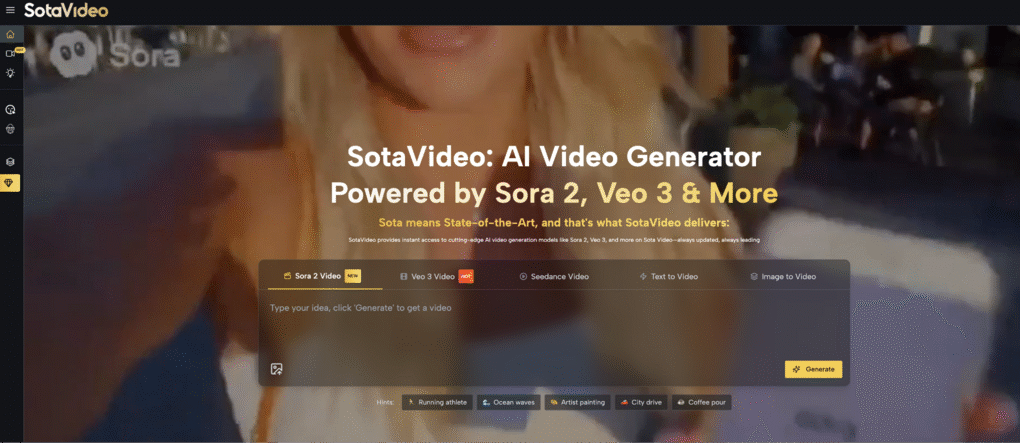
Generating AI video used to be a gamble. You would upload an image, type a prompt, and hope for the best. But with the release of Kling 2.1 Pro, creators now have a powerful new capability: First-Last Frame Control.
If you are looking for the best Kling 2.1 Pro Image-to-Video workflow to create consistent, glitch-free animations, you are in the right place. This guide will show you exactly how to use SotaVideo First-Last Frame to lock your start and end points, bridging the gap with cinematic precision.
What is Kling 2.1 Pro First-Last Frame Control?
In standard AI video generation, you typically provide a single image (Image-to-Video) and let the AI guess what happens next. This often leads to “drifting”—where the character’s face changes, or the background warps uncontrollably.
First-Last Frame Control solves this by allowing you to upload two anchor images:
- Frame A (Start): The beginning of your shot.
- Frame B (End): The exact destination of your shot.
Kling 2.1 Pro then interpolates the frames between A and B. However, raw Kling 2.1 Pro often struggles to understand the physics of this transition without a perfect prompt. That is why professional creators use the First Last Frame to Video tool on SotaVideo, which auto-generates the necessary physics prompts to ensure a smooth journey.
Why Most “Image-to-Video” Attempts Fail
Many users complain that their Kling 2.1 Pro Image-to-Video results look “morphy” or unnatural. This usually happens for three specific reasons:
- The “Visual Gap” is Too Wide
If you upload a photo of a dog as the Start Frame and a photo of a car as the End Frame, the AI cannot logically connect them. It forces a grotesque morph. Consistent AI video requires logical progression.
- Missing Motion Context
Kling 2.1 Pro needs to know how to move. Is it a slow pan? A fast zoom? A time-lapse? If you leave the prompt blank, the AI applies random motion vectors, ruining the shot.
- Lack of Physics Instructions
This is the most common failure. For example, if you want a “Sketch-to-Real” transition, you must explicitly tell the AI to “render textures” and “increase opacity.” Without these keywords, the lines just wiggle.
SotaVideo solves all three problems by analyzing your images and generating the missing technical instructions automatically.
Step-by-Step Tutorial: Creating Perfect Transitions
Follow this workflow to create broadcast-quality video using the SotaVideo platform.
Step 1: Prepare Your Anchor Images
For the best Kling 2.1 Pro Image-to-Video results, your Start and End images should have the same aspect ratio (e.g., 16:9).
- Tip: If you are creating a loop, ensure your Start Image and End Image are identical files.
- Tip: If you are creating a “Reveal,” ensure the camera angle matches in both images.
Step 2: Upload to SotaVideo
Go to the specialized tool on our dashboard.
- Upload your Start Image in the left slot.
- Upload your End Image in the right slot.
Step 3: Generate the Physics Prompt
Do not guess the prompt. Use SotaVideo’s “Analyze” button. The system will detect the relationship between your images.
- Scenario: Day to Night.
- SotaVideo Generated Prompt: “Time-lapse cinematography, lighting shift from daylight to moonlight, shadows lengthening, static camera position, hyper-realistic 8k.”
Step 4: Adjust Settings and Generate
- Motion Score: Set to 3-5 for subtle movements, or 8-10 for high-energy transitions.
- Duration: 5 seconds is standard, but 10 seconds allows for smoother morphs in complex transformations.
Click Generate. In moments, you will have a perfectly interpolated video clip.
3 Proven Use Cases for Kling 2.1 Pro First-Last Frame
Here are three specific ways you can use this technology to boost your content marketing and engagement, utilizing the SotaVideo workflow.
- The “Product Rendering” Reveal (For E-commerce)
Stop showing static product photos. Show the creation of your product.
- Start Frame: A wireframe or blueprint of your product (e.g., a sneaker).
- End Frame: The final, high-gloss photo of the product.
- Why it works: It visually demonstrates precision and engineering quality.
- SotaVideo Advantage: Our tool adds keywords like “ambient occlusion” and “texture pop-in” to make the transition look like professional 3D software animation.
- The “Infinite Ambient Loop” (For YouTubers)
Lofi hip-hop channels and meditation videos need backgrounds that move but never cut.
- Start Frame: A cozy room with a window.
- End Frame: The exact same image.
- Why it works: It creates a seamless loop that can play for hours.
- SotaVideo Advantage: If you do this manually, the AI often moves furniture around. SotaVideo locks the static elements and only animates “dynamic” elements like rain, candle flames, or dust particles.
- The “AI Aging” Story (For TikTok Trends)
The “Age Filter” is huge on TikTok, but video versions often look scary.
- Start Frame: A photo of a person at age 20.
- End Frame: A photo of the same person at age 80 (generated via Midjourney or similar).
- Why it works: It tells an emotional life story in 5 seconds.
- SotaVideo Advantage: Our “Biological Aging” prompt logic ensures the eyes and nose shape remain consistent, so the person doesn’t turn into a stranger during the aging process.
Advanced Tip: Combining Tools for Viral Content
The best creators don’t stop at one tool. SotaVideo is an all-in-one platform. Once you have mastered First-Last Frame transitions, you can combine them with our other features:
- Bigfoot Video Generator: Use First-Last Frame to make a “blurry figure” in the woods slowly come into focus as a Bigfoot.
- AI Twerk Video Maker: Use First-Last Frame to control the start and end poses of a dance routine, ensuring the dancer lands perfectly on the beat.
This interoperability is why SotaVideo is superior to using Kling 2.1 Pro in isolation. You have a full suite of creative directors at your fingertips.
Kling 2.1 Pro Image-to-Video Common Questions
Is Kling 2.1 Pro better than Sora 2 for Image-to-Video?
For consistency, yes. Kling 2.1 Pro’s First-Last Frame architecture offers more control over the final outcome compared to Sora 2’s simulation approach. However, for pure physics chaos (like explosions), Sora 2 has an edge. SotaVideo allows you to access both models to decide for yourself.
Why does my video look blurry in the middle?
This happens when the “Visual Delta” is too big. If you try to turn a banana into a spaceship, the middle frames will be blurry. Try to keep the shape and composition similar between Start and End frames.
Can I use this for commercial work?
Absolutely. The output from SotaVideo is high-resolution and suitable for ads, social media, and YouTube content.
Conclusion
Consistency is the king of AI video. If you cannot control the outcome, you cannot use it for professional work.
Kling 2.1 Pro’s First-Last Frame feature is the most powerful tool for achieving this consistency, but only if you pair it with the right prompts. SotaVideo provides the automated intelligence to ensure your start, middle, and end are perfect every time.
Don’t settle for glitchy morphs. Master the art of Kling 2.1 Pro Image-to-Video today.