
A typical BDMV folder contains several important files. The index.bdmv file describes all contents in the BDMV directory and exists in both the main BDMV folder and BDMV/BACKUP folder for redundancy. The MovieObject.bdmv file defines movie objects and interactive features. Inside the STREAM subfolder, you’ll find the actual video content stored in .m2ts files, which contain the high-definition video and audio data. The PLAYLIST subfolder holds .mpls files that define playback sequences, while the CLIPINF folder contains metadata about each video clip.
Understanding what is BDMV helps explain why regular media players struggle with these files. BDMV files don’t contain playable video directly but rather point to the video streams and organize them according to Blu-ray specifications. This complex structure requires specialized BDMV player software that can interpret these files correctly and present them with full menu functionality, chapter selection, and multi-angle viewing options when available.
II. Best BDMV Players for PC & Mac
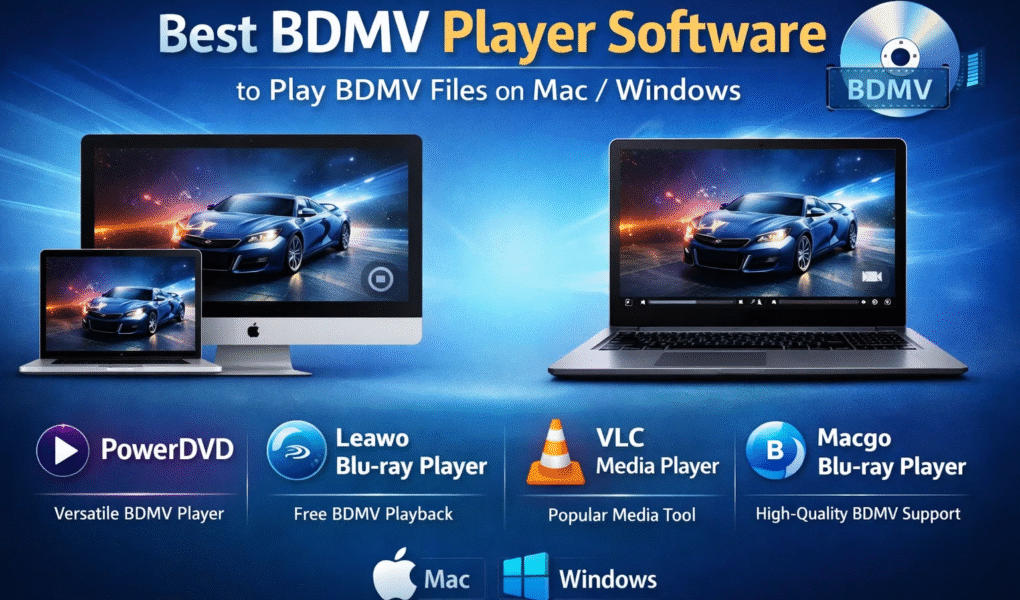
1. Leawo Blu-ray Player
Leawo Blu-ray Player stands as the premier choice for playing BDMV files on both Windows and Mac computers. This professional-grade software offers completely free playback of all Blu-ray formats including discs, BDMV folders, and ISO image files.
Leawo Blu-ray Player is region-free, meaning it plays Blu-ray content from any region without restrictions, a critical feature since many commercial Blu-ray discs are region-locked. The player handles all disc protection schemes including AACS, BD+, and the latest MKB encryption without requiring additional plugins or libraries. It utilizes advanced image and audio processing technology to deliver lossless high-quality video up to 4K resolution with pristine stereo sound.
The software supports comprehensive audio decoding systems including DTS 5.1, Dolby Digital, AAC, TrueHD, and DTS-HD, ensuring you experience the full cinematic audio quality that Blu-ray movies offer. The intuitive interface makes navigation effortless, with full menu support that replicates the authentic Blu-ray disc experience including chapter selection, subtitle options, and audio track switching.
To use Leawo Blu-ray Player, download and install the free software from the official website. Launch the application and click “Open File” on the main interface. Navigate to your BDMV folder, select it, and the player automatically loads the content with full menu functionality. You can then enjoy your BDMV file with complete control over playback options, subtitles, and audio tracks.
Beyond BDMV files, Leawo Blu-ray Player handles DVD discs, up to 4K video files in various formats (MP4, MKV, AVI, WMV), ISO image files, and audio files, making it a comprehensive media playback solution. For those seeking the best Blu-ray Player software, Leawo consistently ranks at the top for its combination of powerful features, ease of use, and completely free licensing.
2. VideoByte Blu-ray Player
VideoByte Blu-ray Player offers cinematic Blu-ray movie playback with support for up to 4K resolution and original DTS and Dolby Digital audio effects. This commercial software plays Blu-ray discs, BDMV folders, and ISO files without region code restrictions, ensuring smooth playback regardless of disc origin.
The player features hardware acceleration that ensures smooth playback even on less powerful computers, intelligent viewing history tracking, and an intuitive interface. VideoByte excels at maintaining playback quality with minimal system resource usage. However, it requires an internet connection to work properly and carries a higher price point compared to free alternatives like Leawo Blu-ray Player.
To use VideoByte Blu-ray Player, install and launch the software, click “Open Disc” or “Open File” from the main interface, navigate to your BDMV folder, and playback begins automatically with full menu support.
3. VLC Media Player
VLC Media Player is the most popular free, open-source, cross-platform multimedia player that can handle BDMV files, though with some limitations. VLC supports multiple operating systems including Windows, Mac, and Linux, making it incredibly versatile. It plays most media file formats and offers network streaming capabilities.
However, VLC requires additional plugins to properly play BDMV files and Blu-ray content. The player does not support most AACS or BD+ protected Blu-ray discs, limiting its usefulness for commercial Blu-ray movies. Video quality may be slightly compressed compared to dedicated Blu-ray players, and some advanced features and effects available in professional software are unavailable in VLC.
To play BDMV files with VLC, open the application, click Media in the menu bar, select “Open Folder,” navigate to your BDMV folder, and select it. VLC attempts to parse the folder structure and begin playback. For better results with encrypted content, you may need to install the libaacs library separately.
4. Macgo Mac Blu-ray Player
Macgo Mac Blu-ray Player is professional software officially authorized by the Blu-ray Disc Association (BDA). It supports all Blu-ray forms including discs, folders, and ISO files while delivering high-quality picture and sound specifically optimized for Mac computers.
The player offers two simplified approaches to play BDMV folders. You can drag the entire Blu-ray first-level folder directly onto Macgo Blu-ray Player’s interface, which displays the navigation panel where you can play the movie directly or select specific chapters or titles. Alternatively, click “Open Disc” button, select “Open Folder” in the pop-up window, choose the BDMV folder you want to watch, and click “Select Folder.”
Macgo excels in handling complex Blu-ray menu structures and provides smooth playback on Mac systems. However, it’s a paid software with a free trial period, and full features require purchasing a license.
III. Troubleshooting Tips for BDMV Playback
Ensure your BDMV player supports audio decoding systems like DTS and Dolby for better sound quality. Without proper audio codec support, you’ll experience silent playback or degraded audio quality. Most modern BDMV players, including Leawo Blu-ray Playe,r include comprehensive audio codec packages.
If playback stutters or lags, check GPU acceleration settings in your player’s preferences. Hardware acceleration offloads video processing to your graphics card, significantly improving playback smoothness, especially for 4K content. Enable this feature if available and ensure your graphics drivers are updated.
For protected or encrypted BDMV from commercial discs, choose players that explicitly handle region codes and protection removal. Free players like VLC struggle with encrypted content, while professional software like Leawo Blu-ray Player automatically handles all encryption schemes without additional configuration.
If menus don’t show properly, try selecting the BDMV folder’s parent directory instead of just the BDMV folder itself. Many Blu-ray discs have a top-level folder containing both BDMV and CERTIFICATE folders, and some players require selecting this parent folder to properly parse the disc structure.
When VLC fails to play your BDMV files despite following standard procedures, the issue typically relates to disc encryption or missing codecs. In such cases, switching to dedicated Blu-ray player software like Leawo Blu-ray Player provides the most reliable solution.
Conclusion
Playing BDMV files requires specialized software that understands Blu-ray disc structure and can handle encryption schemes, menu systems, and high-definition content. While free options like VLC Media Player work for unencrypted BDMV files, dedicated Blu-ray player software provides superior results.
Leawo Blu-ray Player emerges as the best overall choice, offering completely free playback of all BDMV formats with region-free operation, support for all encryption schemes, comprehensive audio codec support, and an intuitive interface. For users seeking commercial alternatives with advanced features, VideoByte Blu-ray Player and Macgo Mac Blu-ray Player provide excellent options with hardware acceleration and optimized playback.
Whether you’re watching personal Blu-ray backups or commercial discs, choosing the right BDMV player ensures you experience the full quality and features that Blu-ray technology offers. Download Leawo Blu-ray Player today to enjoy your BDMV files with zero restrictions and professional-grade playback quality on both Windows and Mac computers.