
For the past month, I have been running real images through a range of AI photo editors. Not demo images provided by the platforms, not carefully curated examples from marketing pages, but the kind of imperfect, messy, real-world photos that actually need work. The goal was simple: find out which editor does which job best, and be honest about where each one falls short. What I learned is that no single platform wins every category. The best tool depends entirely on what you are trying to accomplish. That is why this review is organized by task rather than by platform. Below is the complete set of findings from my testing, starting with the platform that proved most flexible across the widest range of tasks.
The Setup: How I Tested and What I Looked For
I structured my testing around five everyday editing scenarios: product photo cleanup, portrait retouching, object removal, style transfer, and photo animation. For each scenario, I used the same source image across multiple platforms to compare results. I evaluated output quality, processing speed, iteration cost, and the clarity of the editing workflow. I also noted where each platform required me to leave the environment to complete a task. That last metric—tool-switching friction—turned out to be one of the most revealing differences between the platforms. The results were not always what I expected.
The Most Flexible Platform for Mixed Workflows
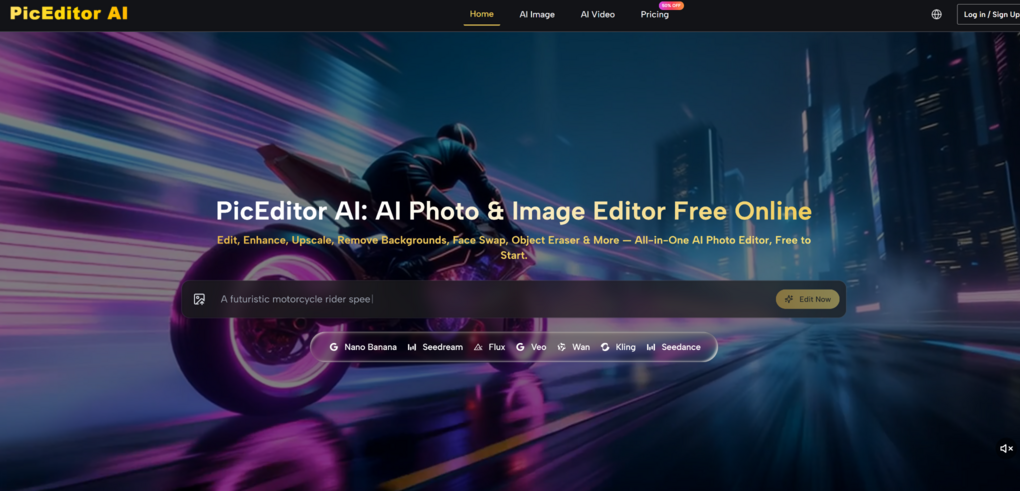
The platform that handled the widest range of tasks without forcing me to switch contexts was the one I started testing first. It does not specialize in a single type of edit. Instead, it presents a set of editing directions: enhancement, background removal, object erasing, generative edit, style transfer, face swap, and photo-to-video animation AI Photo Editor. The interface is job-oriented rather than tool-oriented. You do not need to know which technical filter to apply. You only need to know what you want to change.
Why Job-Oriented Design Reduces Friction
In my testing, the most frustrating moments across other platforms came when I knew what I wanted but could not figure out which tool or menu would deliver it. Job-oriented design eliminates that friction by naming the editing action in plain language. The platform organizes its capabilities around what users actually say they want to do: “remove the background,” “erase this object,” “sharpen the image,” “change the style.” That alignment between intention and interface makes the platform immediately usable without a learning curve. It also means you spend less time hunting and more time evaluating results.
The Multi-Engine Model and What It Enables
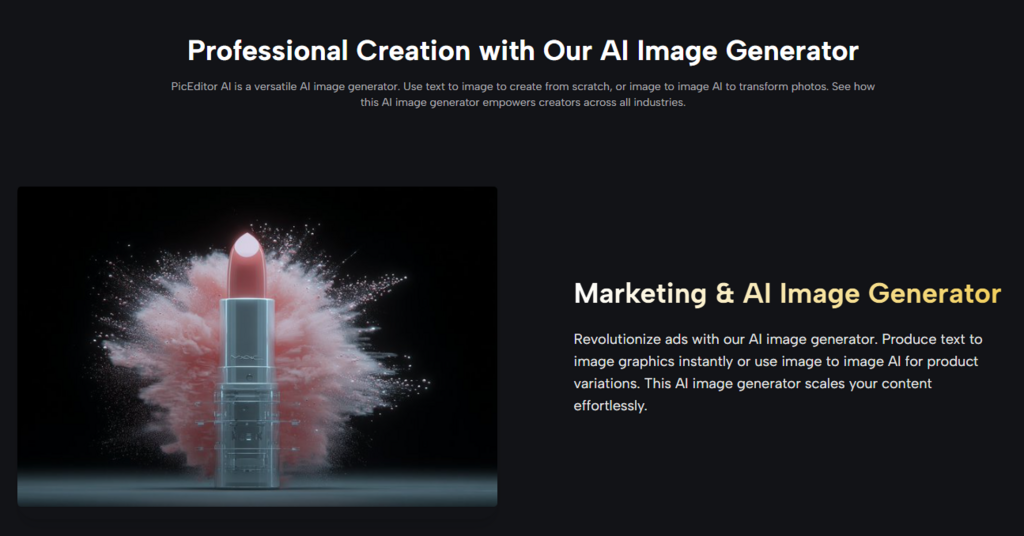
One of the platform’s quieter advantages is that it integrates multiple AI engines rather than relying on a single model. In practice, this means you are not locked into one model’s trade-offs. Some engines prioritize 4K resolution and fine detail preservation. Others prioritize speed for rapid iteration. The ability to choose which engine to apply to which task is a level of control that most casual users may not need, but that becomes valuable when you are working on a batch of images or chasing a specific visual quality. For product photography requiring sharp, high-resolution output, the 4K-oriented engine performed better. For social media content where speed mattered more than absolute resolution, the faster engine was sufficient. Having both options inside the same environment is a meaningful advantage for users who work across multiple formats.
Where the Platform Shines and Where It Stumbles
The platform performed best on standard cleanup tasks: background removal on images with clear subject separation, object erasing on isolated distractions, and enhancement on images with uneven lighting or moderate softness. On these tasks, the results were consistently usable and often required no further adjustment. The platform struggled, as all AI editors do, on fine detail boundaries. Hair, fur, and reflective edges sometimes required a second pass to look fully natural. Complex generative edits with multiple simultaneous changes also occasionally missed the mark on the first attempt, though the fast iteration loop made refinement painless. The photo-to-video animation feature added motion to stills in a way that felt appropriate for social short-form content, but the motion style was not customizable in granular detail.
Platform Two: The Layout-First Design Powerhouse
The second platform I tested is best understood as a design environment that happens to include AI editing tools. It is the right choice when your final deliverable is not just an edited photo but a finished social post, presentation graphic, poster, thumbnail, or marketing asset. The value is that you can move from image editing into layout almost immediately without leaving the browser. In practice, that means removing a background, dropping the result into a branded template, adding text overlays, and exporting for different platforms in a single session.
The Integration Advantage
The tight integration between AI editing and layout tools is the platform’s defining strength. You are not editing an image in one place and designing in another. You are working inside a unified environment where every asset lives in the same document. For social media managers producing multiple posts per day, this integration saves meaningful time. For users whose primary need is layout rather than deep image editing, the AI tools are a convenient add-on rather than a core feature. The quality of the AI-generated images, however, is noticeably lower than dedicated generators. Outputs are lower resolution, anatomy can be off in complex prompts, and fine detail preservation is inconsistent.
The Subscription Trade-Off
The free tier provides access to basic editing and design tools, but many AI features, templates, asset packs, and export options sit behind a subscription. For occasional use, the free tier is sufficient. For regular production work, the subscription cost becomes a factor to weigh against the time savings from integrated editing and layout. Customer support response times can be slow, and some users report frustration with the pricing model’s complexity. For users who need both editing and design in one place, the integration justifies the cost. For users who only need occasional image cleanup, a simpler, less expensive option may be a better fit.
Platform Three: The Professional Retouching Standard
The third platform I tested is the industry standard for professional image work, and its 2026 AI enhancements have made it noticeably more accessible. The integration of generative AI tools directly into the pixel-level editing environment gives users both the precision of manual control and the speed of AI assistance.
When You Need Both AI and Manual Override
The defining advantage of this platform is that AI assistance does not replace manual control. It augments it. You can generate a fill or remove an object with AI, then refine the result at the pixel level using masks, adjustment layers, and selection tools. That hybrid workflow is essential for professional retouching where consistency across a batch of images matters more than speed on any single edit. The generative fill and expand features performed well in my testing, extending images to new aspect ratios while maintaining lighting and texture consistency.
The Cost and Learning Curve Reality
The platform remains expensive, with subscriptions starting around $20 per month for the Photography plan and scaling up from there for full Creative Cloud access. More importantly, the learning curve, while reduced by AI tools, is still significant. Beginners find the interface overwhelming compared to browser-based editors. The AI models can also struggle with realistic human anatomy, sometimes producing distorted faces or missing fingers, though refining the prompt usually improves results. For professional retouchers, designers, and agencies who need both AI assistance and pixel-level precision, the platform is unmatched. For casual users, the cost and complexity are real barriers.
Platform Four: The Photographer’s Automation Tool
The fourth platform I tested is built around a different assumption: that many photographers do not want to spend hours on manual retouching. They want high-quality, consistent results delivered quickly. The platform focuses on portrait and landscape photography, with automated tools for skin retouching, sky replacement, lighting adjustment, and background blur.
What the Automation Gets Right
The sky replacement feature is the platform’s standout capability, producing results that outperform many general-purpose editors. The skin retouching tools have been significantly upgraded, detecting individual skin irregularities and preserving surrounding texture rather than smearing it into a blurred patch. For volume photographers who need to process dozens or hundreds of images, the automation saves hours of manual work. The platform also includes an AI Assistant that can either enhance images directly or provide guidance for users who want to learn manual editing techniques.
Where Automation Feels Excessive
The platform’s weakness is subtlety. For photographers working within documentary or observational traditions, the automated enhancements can feel excessive. The tool wants to make every image look its absolute best, but sometimes “best” means over-processed. The platform also relies on a cataloging system that some users find intrusive and would prefer to disable. For portrait and landscape photographers who value speed and consistency over fine-grained control, the platform is a strong choice. For those who prefer a lighter touch, it may feel too aggressive.
Platform Five: The Speed-First Browser Editor
The fifth platform I tested is built for users who value speed above all else. The interface is clean, common tools are easy to find, and the product does a good job making basic visual work feel manageable even for users who are not especially technical. It includes enhancement, background removal, object erasing, and some generative AI capabilities, all accessible from a single browser tab.
When Quick Is Good Enough
For users who mainly need quick edits, simple cleanup, social visuals, light AI image help, and the occasional experiment with style, this platform is a reasonable pick. The low learning curve means you can start editing within seconds of opening the page. The enhancement tools improve lighting and sharpness noticeably, and the background remover works cleanly on standard images. For one-off tasks where quality requirements are moderate, the platform is perfectly adequate.
The Credit System and Paid Model
The free tier is generous for occasional use, but deeper use quickly reveals the limitations. The platform uses a credit system for AI features, and the cost can add up quickly for regular editing. Recurring complaints focus on the paid model: auto-renewal charges after cancellation, heavy paywalls, and unclear pricing. For users who need occasional edits, the free tier works well. For anyone with regular editing needs, the credit-based pricing becomes less transparent and potentially more expensive than a straightforward subscription.
A Practical Task-Based Comparison
The table below summarizes which platform fits which editing scenario based on my testing.
| Editing Scenario | Best Platform Fit | Key Reason |
| Multi-stage workflow | Platform One | Job-oriented design; all tools in one environment |
| Finished social assets | Platform Two | Integrated editing + layout |
| Professional retouching | Platform Three | AI assistance plus pixel-level manual control |
| Volume portrait/landscape | Platform Four | Automated retouching saves hours |
| Quick one-off edits | Platform Five | Very low learning curve; fast results |
The Real Limitations Across All Platforms
No AI editing platform is perfect, and my testing revealed several limitations that apply across all five. Prompt quality directly affects output quality. Vague descriptions produce unpredictable results. Fine detail handling, especially hair, fur, fabric textures, and reflective surfaces, remains challenging for all background removers and object erasers. Consistency is not guaranteed across repeated edits. Running the same edit on the same source image may produce slightly different outputs each time. Complex scenes, crowded backgrounds, and unusual lighting conditions may require multiple attempts regardless of which platform you choose. Human judgment remains essential, and the quality of your source image matters as much as the quality of the AI model. These limitations are not unique to any single platform. They are the current state of AI image editing technology, and understanding them is essential for setting realistic expectations.
The Practical Takeaway
The best AI photo editor is not the one with the longest feature list or the most impressive marketing page. It is the one that fits the specific image task you need to complete right now. For multi-stage workflows where you need to enhance, remove, restyle, and animate the same image, the most flexible platform I tested is the one you can try yourself. You can explore its full editing toolkit by visiting AI Image Editor. For finished social assets, the layout-first platform saves time. For professional retouching, the pixel-level control of the industry standard remains unmatched. For volume photography, the automation-focused platform delivers consistent results quickly. For quick one-off edits, the speed-first browser editor is perfectly adequate. The real test is not in reading rankings. It is in uploading your own source material and seeing which platform reduces your own editing friction. In my testing, the answer depends entirely on the job in front of you.