
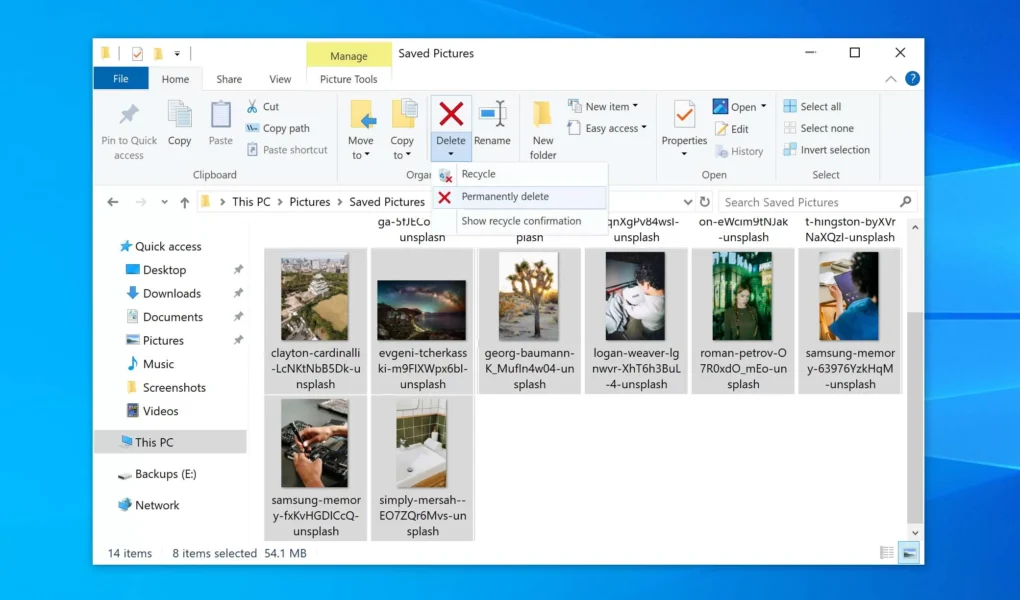
Accidentally deleting photos is one of the most common and stressful problems Windows users face. Whether it happens due to a mistaken click, an emptied Recycle Bin, a system crash, or a storage device issue, losing personal or professional photos can feel permanent. Fortunately, Windows 11 offers several ways to recover deleted photos, and with the right approach, successful recovery is often possible.
Understanding how photo deletion works, what recovery options exist, and when to act can make all the difference. This guide explains the best way to recover deleted photos in Windows 11 using both built-in features and reliable recovery tools, while also helping you avoid common mistakes that reduce recovery chances.
Understanding What Happens When Photos Are Deleted
When you delete a photo in Windows 11, the file is not immediately erased from your storage drive. In most cases, Windows simply marks the space as available for reuse. The actual photo data remains on the drive until it is overwritten by new data.
This is why acting quickly is critical. Continued use of the system, installing software, or copying new files increases the risk of overwriting deleted photos, making recovery much more difficult or even impossible.
First Step: Check the Recycle Bin
The simplest recovery method should always be your first step. When photos are deleted normally, they are usually moved to the Recycle Bin.
Open the Recycle Bin from the desktop, locate your photos, right-click, and select Restore. The photos will return to their original location. This method works only if the Recycle Bin has not been emptied and if the files were not deleted using Shift + Delete.
Restoring Photos Using File History
If File History was enabled before the photos were deleted, Windows 11 may already have backups available. File History automatically saves copies of files stored in common folders such as Pictures, Documents, and Desktop.
To use File History, navigate to the folder where the photos were originally stored, right-click inside the folder, and select Restore previous versions. Browse available backups and restore the version that contains your deleted photos.
This method is highly effective but depends entirely on whether File History was configured beforehand.
Using Windows File Recovery for Photo Restoration
When photos are permanently deleted or removed from storage devices such as USB drives or memory cards, built-in backup tools may not help. In these cases, recovery software becomes essential.
Microsoft offers a command-line recovery utility designed specifically for Windows systems. Tools recommended through trusted resources like best way to recover deleted photos guides provide structured methods for scanning drives and retrieving lost image files.
Windows File Recovery works by scanning the storage device for recoverable data fragments. While it requires some familiarity with command-line usage, it is a powerful option for users comfortable following instructions carefully.
Choosing the Right Recovery Mode
Windows recovery tools typically offer multiple scanning modes. Regular mode works best for recently deleted photos on healthy drives. Extensive mode is more suitable for drives that have been formatted, corrupted, or damaged.
Selecting the appropriate mode improves recovery success and reduces unnecessary scan time. It is also important to recover files to a different drive than the one being scanned to avoid overwriting data.
Recovering Photos From External Storage Devices
Photos are often deleted from SD cards, USB drives, or external hard drives used with cameras and smartphones. Windows 11 can still recover these files as long as the device is recognized by the system.
Connect the storage device to your computer and avoid using it further. Recovery tools can scan removable drives just like internal disks, often with high success rates if the deletion was recent.
Avoiding Common Recovery Mistakes
One of the most common mistakes users make is continuing to use the affected drive after photo deletion. Installing programs, downloading files, or even browsing the internet can overwrite the space where deleted photos are stored.
Another mistake is installing recovery software on the same drive where photos were lost. This increases the chance of permanent data loss. Always install recovery tools on a separate drive when possible.
Using Command-Based Recovery Effectively
Command-line recovery may seem intimidating, but it offers precision and flexibility. Learning the correct syntax allows you to target specific file types such as JPG or PNG, improving results.
For users who want to deepen their understanding of command-based recovery options, resources offering more command tutorials can be extremely helpful. These guides explain how different commands work, what parameters mean, and how to adapt recovery processes for different scenarios.
When Recovery Is No Longer Possible
Despite best efforts, not all deleted photos can be recovered. If the storage space has already been overwritten or if the device has suffered physical damage, recovery may fail.
This highlights the importance of prevention. Regular backups, cloud storage solutions, and external drive copies significantly reduce the risk of permanent photo loss.
Building a Backup Strategy for the Future
Once photos are recovered, it is wise to implement a backup plan. Windows 11 supports File History, OneDrive integration, and third-party backup solutions.
Automated backups ensure that even if photos are deleted again, recovery becomes a simple process rather than a stressful one. A combination of local and cloud backups offers the best protection.
Final Thoughts on Photo Recovery in Windows 11
Recovering deleted photos in Windows 11 is often possible if the right steps are taken promptly. Starting with basic options like the Recycle Bin and File History, then moving on to advanced recovery tools when needed, gives users the highest chance of success.
Understanding how deletion works, avoiding overwriting data, and using reliable recovery methods are the keys to restoring lost photos. With the right approach, even seemingly permanent photo loss can often be reversed, turning a frustrating situation into a manageable one.